
Choosing a Website Platform: Why Managed SaaS Should Usually Be the Default
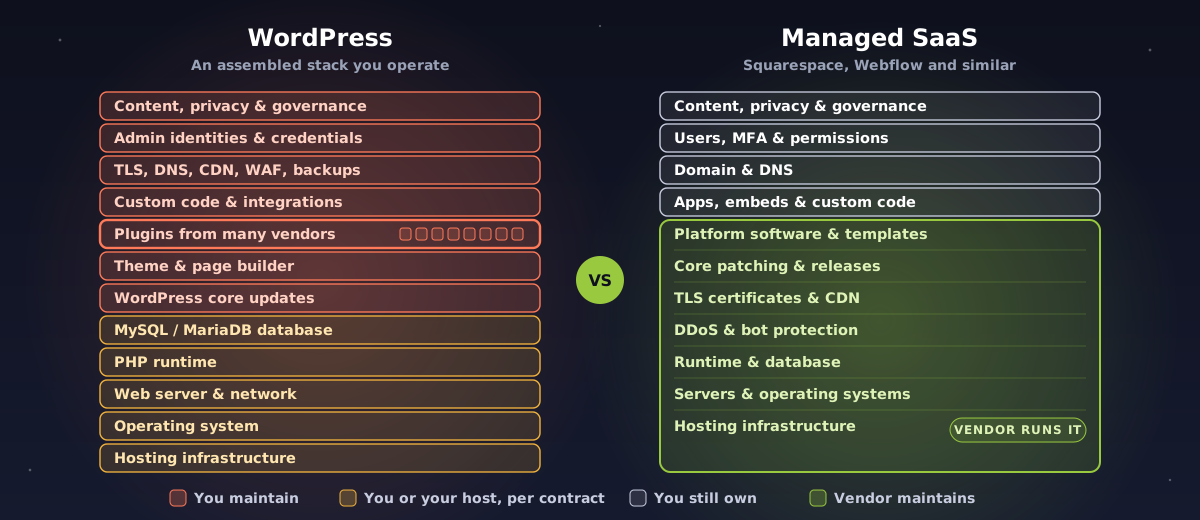
Squarespace, Webflow or WordPress? Why a managed platform should usually be the default, what plugins really cost you, and when WordPress is still worth it.
October 19, 2026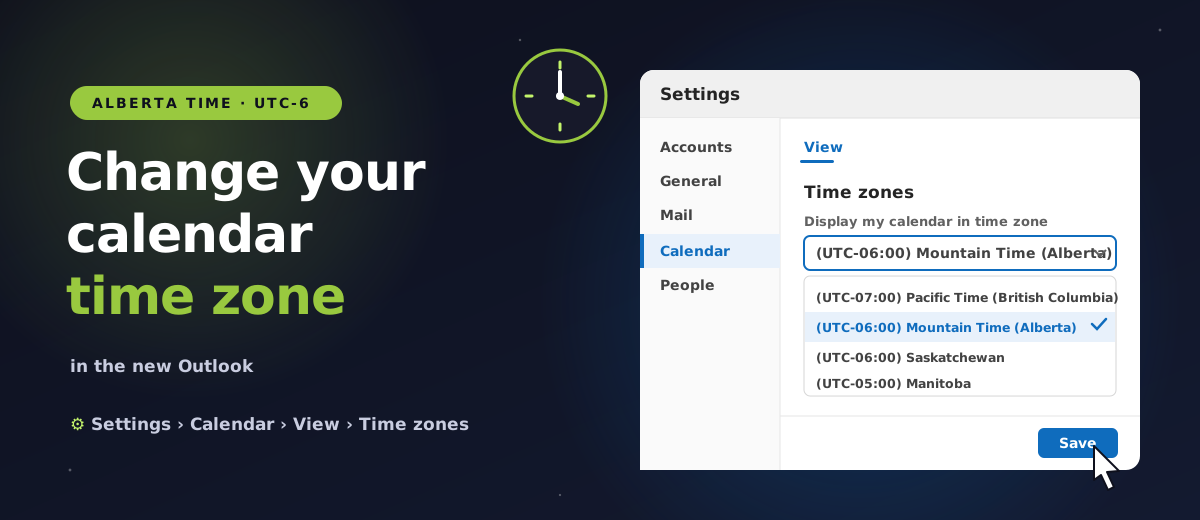
Alberta changed time zones on November 1, 2026. The province now stays on Alberta Time (UTC-6) all year, and clocks no longer go back to Mountain Standard Time in the fall. British Columbia and Manitoba made similar changes on the same day.
Outlook doesn't always switch over by itself. If your calendar is still set to the old (UTC-07:00) Mountain Time (US & Canada), it's now an hour behind Alberta, and meetings can show up at the wrong time. Microsoft added a new time zone for the province, (UTC-06:00) Mountain Time (Alberta), and asks Outlook users to switch to it.
The good news: it takes about a minute in the new Outlook. Here's exactly where to click.
Microsoft now has two Outlook apps for Windows, and the steps are different. Here's the quickest way to tell them apart:
A Settings gear icon in the top-right corner, and no File tab. Outlook on the web looks and works the same way.
A File tab in the top-left corner. Use File › Options › Calendar and find Time zones there instead.
Open the new Outlook. In the top-right corner, select the Settings gear icon. Don't see a gear? Select the ... button at the top of the window, then Settings.
Using Outlook in a web browser? The gear is in the same place, and every step below is the same.
The Settings window opens. In the list on the left, select Calendar.
Next, select View. This page holds the calendar display options, including time zones.
Scroll down to Time zones. Open the list under Display my calendar in time zone and choose your zone. In Alberta, that's (UTC-06:00) Mountain Time (Alberta).
Not sure which one? There's a quick guide for Alberta, B.C., Saskatchewan and Manitoba just below.
You can type a Label for the time zone, such as "Office" or "Calgary".
If you travel, tick When I travel across time zones, ask me if I want to update my time zone, and Outlook will offer to switch for you.
Select Save. Your calendar is now on the new time zone.
One more thing: meetings that were booked before the change may still be an hour off. Here's how to fix those.
Illustrations of the new Outlook settings. Your screen may look slightly different depending on your version and theme.
Outlook lists time zones by their name and their offset from UTC (the world's reference clock). Since November 1, 2026, here's what to choose:
Don't see the new Alberta option? The new time zones arrive through Windows updates. Run Start › Settings › Windows Update, restart your computer, then try again. On a Reality Bytes managed computer, call us and we'll take care of it.
Changing your calendar's time zone doesn't change meetings that were already saved with the old Mountain Time zone. Microsoft recommends checking anything scheduled on or after November 1, 2026, especially recurring meetings and events booked far in advance.
Working with a client, supplier or colleague in another province? Outlook can show a second time zone beside your own, so you never have to do the math when booking a meeting.
The extra time zone appears down the side of your calendar in Day and Week view. To change the order or take one away, go back to the same page and use Move up, Move down or Remove, then Save.
You're probably using classic Outlook. Use File › Options › Calendar and look for Time zones.
They were probably saved with the old Mountain Time zone. Update them as shown in Fix meetings that were booked before the change, or ask the organizer to.
Install the latest Windows updates, then check Start › Settings › Time & language › Date & time. Make sure the time zone is (UTC-06:00) Mountain Time (Alberta), or turn on Set time zone automatically.
New events in the Outlook phone app use your phone's time zone. Update your phone's software and make sure its time zone is set automatically.
Each person's time zone setting only changes how they see the calendar. Everyone else keeps seeing meetings on their own clock.
If Outlook is still showing the wrong times, or you're juggling calendars across a team, we're happy to help. Reality Bytes clients can reach our 24/7 help desk at 1-888-887-BYTE or through the client portal, and our Microsoft 365 team can set up calendars, shared mailboxes and Outlook for your whole office. Not a client yet? Get in touch.
Squarespace, Webflow or WordPress? Why a managed platform should usually be the default, what plugins really cost you, and when WordPress is still worth it.
October 19, 2026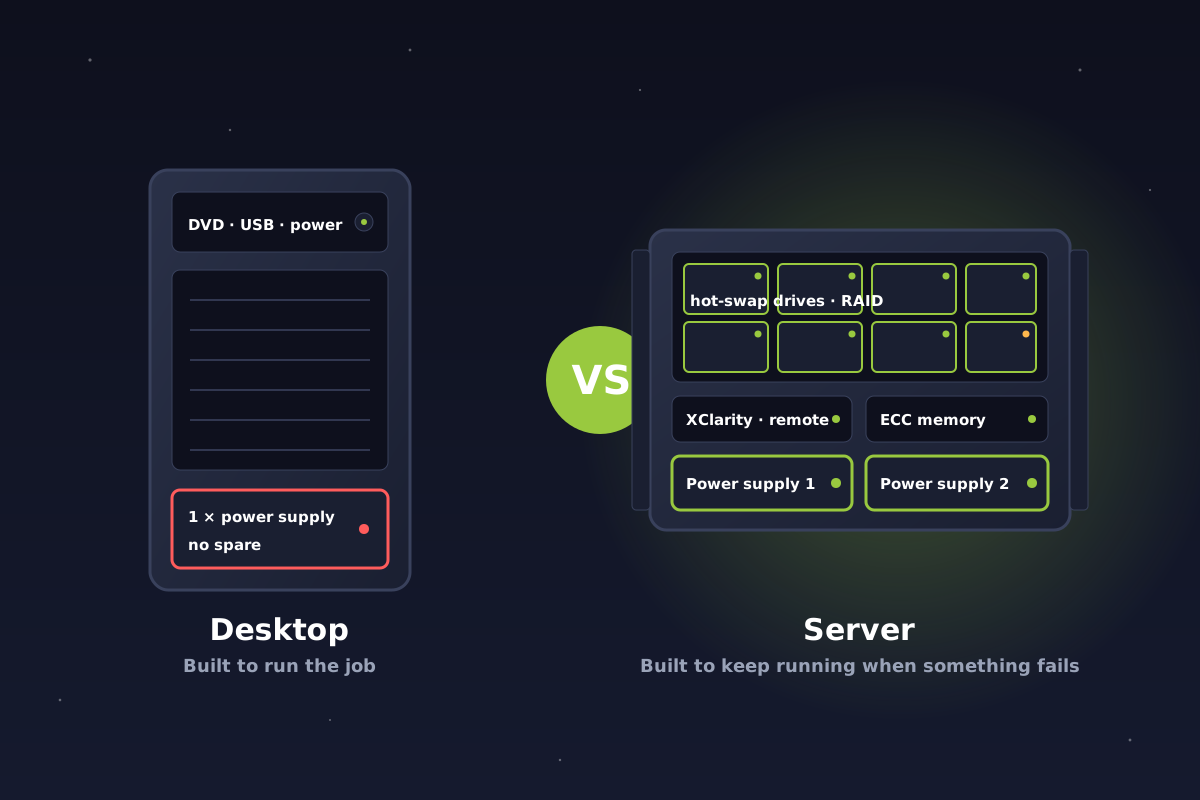
Can a desktop be your server? It can, but it shouldn't always be. See why Lenovo ThinkSystem servers win on reliability, redundancy, remote management and downtime.
October 14, 2026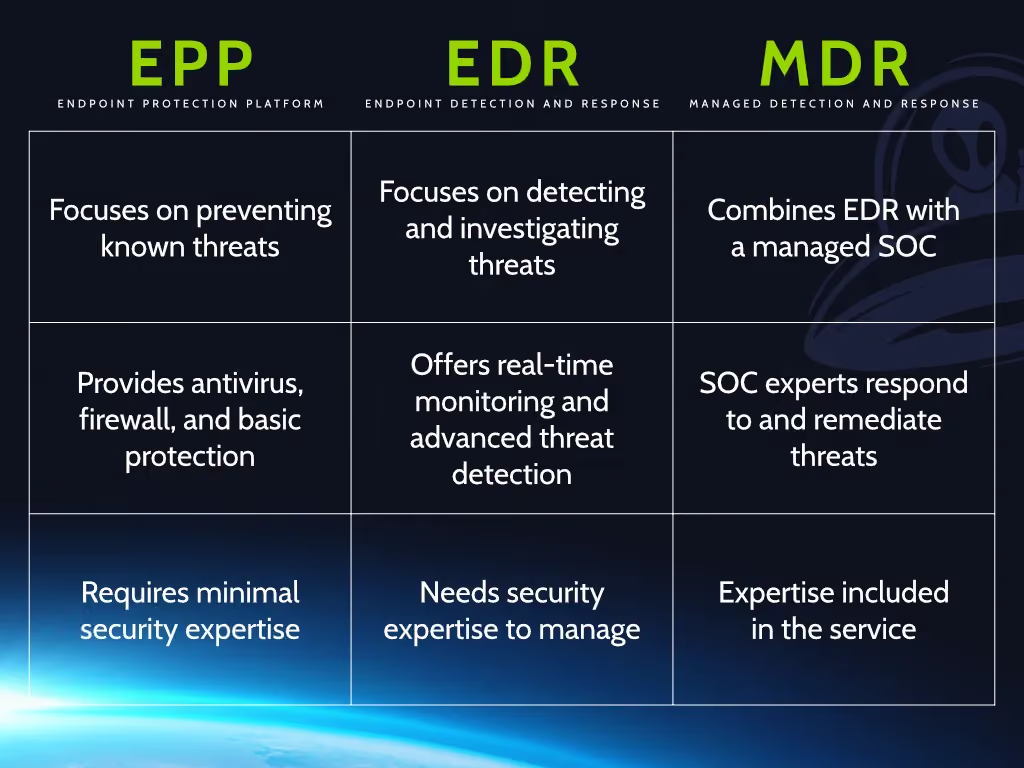
Antivirus, EDR and MDR explained in plain language, and why antivirus alone no longer protects Alberta and Canadian businesses from ransomware and modern attacks.
October 13, 2026